Xfinity
- 3.8
- Rating
- 10.00M
- Installs
- Free
- Price

 Analysis by App-foxy
Managing home connectivity from a phone sounds simple until the internet slows down during a video call, a streaming session stops loading, or someone in the household needs help while you are away. Xfinity is built for those moments. Developed by Comcast, this free productivity app puts account and service management into a mobile interface rather than making you rely on a browser or a phone call. I found its value less in constant daily use and more in how quickly it can become useful when something connected to your home needs attention.
The app has a broad audience because it is rated for Everyone and runs on devices using Android or iOS versions from 10 onward. Its current version is 5.71.1-2, and its scale is clear from more than ten million installs and an average score of 3.8 from roughly 324 thousand ratings. Those figures suggest a familiar pattern: many people find it practical, while others run into account, network, or device-specific friction. My experience fits that middle ground. It is a worthwhile companion for Comcast customers, but it is not a universal connectivity toolbox and should not be judged as one.
Where the connection changes the experience
The most important thing to understand is that Xfinity is closely tied to the services and account it manages. That makes connectivity central to the experience. When the phone has a stable connection and the app can reach the relevant Comcast systems, checking information or handling a service task feels much more convenient than switching between web pages. When either side is struggling, the app becomes less reassuring because the very tool you open to investigate a connection problem also depends on communication with online services.
You May Also Like

 Blood Strike: 2.5 Anniversary
Blood Strike’s Loadouts Turn Every Drop Into a Tactical Gamble
A close look at Blood Strike’s custom loadouts: how fast access to signature weapons reshapes its battle royale rhythm, rewards preparation, and narrows the gap between fights.

 Pandora - Music & Podcasts
Pandora’s Music Is Easy to Start, but Harder to Recover
Pandora’s strength is its low-effort path from a seed to a station. Its weak spot is how much confidence it asks you to place in connection, setup, and quiet recovery.

 8 Ball Pool
 Is Built on Rivalries, Rematches, and Routine
A close look at the rivalries, rematches, shared routines, and unanswered safety questions that turn a quick pool match into a persistent mobile community.

 Samsung Music
’s Quiet Strength Is Playing What You Already Own
Its reach comes less from spectacle than from dependable access to a personal library. That simplicity is both the app’s strongest retention engine and its ceiling.

 AccuWeather: Weather Radar
AccuWeather Review: A Quick, Clear Forecast for Everyday Decisions
For everyday plans, the best forecast is the one you can understand quickly. AccuWeather makes rain timing, radar, and local conditions easy to act on, with a few trade-offs.

 Hill Climb Racing
Why Hill Climb Racing Still Turns Crashes Into One More Run
A tiny car, a bumpy hill and one more upgrade: Hill Climb Racing keeps resurfacing because its simple chaos makes every near-miss feel personal.
More From Our News Desk



That creates a practical distinction between a slow home network and a problem with the phone’s own connection. If your home Wi-Fi is having trouble but mobile data is available, the app can still be useful as a separate route into your account. I like this as a troubleshooting habit: disconnect the phone from Wi-Fi temporarily, open the app over mobile data, and see whether account or service information loads. This does not repair a line by itself, but it helps separate a local wireless issue from a broader service problem.
The reverse situation matters too. If mobile reception is weak, the app may not be the best place to investigate a home outage, even when the home network itself is working. In that case, moving closer to a reliable signal or waiting until the handset reconnects can save time. The app is most useful when it has a dependable path to Comcast, not merely when the home router is powered on. That small distinction prevents a lot of unnecessary tapping and restarting.
I also noticed that a connectivity-management app is judged more harshly during an incident than during normal use. A routine account check can tolerate a moment of loading. A service problem cannot. If you open Xfinity because a meeting is about to begin, every delay feels more serious. I recommend opening it occasionally during calm periods, signing in properly, and becoming familiar with where your common account and service controls appear. Learning the layout during an outage is the mobile equivalent of reading instructions after the alarm has started.
Useful on the move, but not in every mobile situation
Xfinity makes the most sense for people who manage a Comcast connection while moving between home, work, school, and travel. A phone is already with you when a household member reports a problem, when you are waiting in a car, or when you remember an account task away from a computer. The app’s productivity category is appropriate here: it is not entertainment, and its main benefit is reducing the number of steps between noticing a service issue and deciding what to do next.
A realistic example is a parent leaving home for work while a child remains there for online study. If the child reports that the connection is unreliable, I would use the app over mobile data first rather than repeatedly reconnecting to the same troubled Wi-Fi network. That gives me a better chance of reaching the account view and checking what can be managed remotely. If the app loads normally, I can continue with the available service workflow. If it does not, I know the limitation may be the phone’s network path rather than proof that the home connection is the only problem.
Another useful mobile context is shared responsibility. In many households, the person who originally arranged service is not always the person who notices a problem. Keeping the app available on the device of the person who handles practical errands can make account management less dependent on being physically near a laptop. That is especially convenient for renters, families, and people who spend much of the day away from home.
Still, I would not install it on every family member’s phone automatically. Account apps can expose sensitive service information, and a shared household does not mean every user needs the same access. Decide who genuinely needs to manage the connection, then keep the app on that person’s device. Use the phone’s normal security protections, and avoid leaving an account session open on a borrowed handset. These are simple habits, but they matter more for an account-management app than they do for a casual utility.
Mobile screens also change how much information you can comfortably process. A phone is excellent for a quick check or a focused action, but less pleasant when you need to compare several details or read a long explanation. If a problem keeps returning, I prefer to use the app for the immediate check and then move to a larger screen or a more deliberate support process for the underlying investigation. Xfinity is convenient because it is mobile, not because a phone is always the best format for complex diagnosis.
What to do when loading fails or a task stalls
The most frustrating moments are not necessarily complete outages. A page that partially loads, a status view that takes too long, or a task that appears not to finish can leave you unsure whether to wait, retry, or start over. My first recommendation is to avoid rapid repeated taps. On a weak connection, several attempts can create confusion about which action actually succeeded.
Instead, pause and check the basics in a fixed order. Confirm whether the phone is on Wi-Fi or mobile data, test another ordinary connection-dependent app, and then return to Xfinity. If other apps also struggle, the phone’s current network path is the likely first suspect. If everything else works, close and reopen the app once, then try the task again. This routine is not glamorous, but it is more reliable than repeatedly forcing the same screen to refresh.
If you are investigating home connectivity, change only one variable at a time. For example, begin on mobile data, then try Wi-Fi after the account view responds. That makes the result easier to interpret. Restarting the phone, router, and app all at once may occasionally help, but it removes the clues that tell you what was actually wrong. I prefer a slower sequence because it turns a vague “the internet is broken” complaint into a more useful observation.
There is also a recovery issue after a failed action. Before repeating anything that might alter service settings or account state, look for a visible confirmation or revisit the relevant screen. If the app is unavailable, do not assume that nothing happened simply because the interface did not update. Give the system a moment, then verify through the account view when the connection returns. This is one of the main reasons I see Xfinity as a management companion rather than a magic repair button: it can organize the next step, but the user still needs to confirm the result.
App updates can affect recovery as well. The version listed for the app is 5.71.1-2, so keeping the installation current is sensible when a task behaves unexpectedly. I would update through the normal app store process when the phone has a stable connection, rather than attempting an update in the middle of an urgent outage. If the app worked previously and suddenly behaves differently, checking whether an update is available is a reasonable early step, but it should not replace basic network testing.
Using it without wasting mobile data
Because Xfinity is designed around account and service management, I do not treat it as an app that needs to be open constantly. That is good news for data-conscious users. The most efficient approach is to open it for a specific reason, complete the check or task, and close it rather than leaving it active while waiting for a network problem to resolve.
If home Wi-Fi is unreliable, mobile data can provide a useful backup route, but I would use it intentionally. A quick account check is different from repeatedly refreshing a screen for several minutes. Set a clear stopping point: try the app once, confirm whether it responds, and move to another troubleshooting step if the result is inconclusive. This saves data and prevents a weak connection from turning into a cycle of endless refreshes.
There is a useful trade-off here. Using mobile data can help you reach the account when home Wi-Fi is down, but it can also make you think the home service has recovered simply because the app loaded on the phone. Always test the device or service that originally failed before declaring the problem solved. The app can tell you that you reached Comcast; it does not automatically prove that every device in the home has a healthy connection again.
On a limited data plan, I would also avoid opening the app just to browse. Use it as a task-oriented tool: check the account, inspect the relevant service information, take the next appropriate action, and leave. If you need more detailed reading, wait for a trusted Wi-Fi connection. The app is free, which removes a purchase barrier, but free does not mean every mobile session has zero cost. Your carrier’s data allowance still matters.
Battery use follows a similar principle. There is little reason to keep an account-management app running in the foreground while you wait for a service issue to change. Open it when you can act, not as a passive monitor. That approach also reduces distraction and makes the app feel more like a practical tool than another source of notifications or unfinished tasks.
Who benefits most, and who should choose another route
I would recommend Xfinity first to existing Comcast customers who want a convenient way to manage service from a phone. It is especially suitable for people who are often away from home, households where one person handles connectivity tasks for everyone, and users who prefer a focused mobile interface to a desktop browser. The free price makes trying it straightforward, while the Everyone age rating keeps it broadly accessible for ordinary household use.
It is less compelling for someone who does not use Comcast services. In that case, the app’s value is tied to an account and service relationship rather than general internet diagnostics. I would also hesitate to recommend it as the only tool for a technically demanding home network. Users who need deep router controls, detailed local-device analysis, or highly specialized monitoring may be better served by hardware-specific utilities or a full browser-based administration interface.
Compared with calling support, the app offers convenience and privacy from a public conversation, especially when you are in a queue, at work, or handling a problem quietly. Compared with using a browser, it is better suited to quick mobile checks because it keeps the experience centered on the phone. The browser may still be preferable when you need a larger view, several tabs, or easier copying and comparing of information. Neither route wins every situation; the app wins when speed and mobility matter more than screen space.
Compared with independent network-testing apps, Xfinity has a different purpose. A general diagnostic app may help you examine local performance or connectivity from a technical angle, while Xfinity is the more natural place to deal with Comcast-related account and service tasks. I would use both only when I had a clear reason: one to understand what the phone or network is experiencing, and Xfinity to manage the customer side of the service. Installing several overlapping utilities without a plan usually creates more confusion than insight.
My connectivity verdict
After using Xfinity as a mobile productivity tool, I see it as most valuable at the boundary between a person and a home service. It helps when you need to act away from a computer, when Wi-Fi itself is the thing you are questioning, or when a household problem needs an account-level response. Its strongest quality is not constant activity; it is being available at the moment a connection problem becomes a practical task.
The limitations are equally important. A phone app cannot remove every network dependency, and a successful app session does not guarantee that the home connection is healthy. Weak mobile reception, incomplete loading, or unclear recovery after a failed action can make urgent situations feel more complicated. I recommend approaching it with a simple plan: use a separate connection when possible, change one variable at a time, avoid frantic retries, and verify the original device or network before considering the issue resolved.
With Comcast as the developer, more than ten million installs, and a 3.8 average from a large user base, Xfinity is clearly established rather than experimental. My final view is positive but specific: Xfinity is a sensible free companion for Comcast customers who want mobile control, not a replacement for every networking or support tool. If your everyday need is quick account and service management while moving through real life, I would keep it installed. If you want advanced local diagnostics or rarely interact with Comcast services, another option will probably serve you better.
FAQs for Xfinity
01What features does the Xfinity app offer?
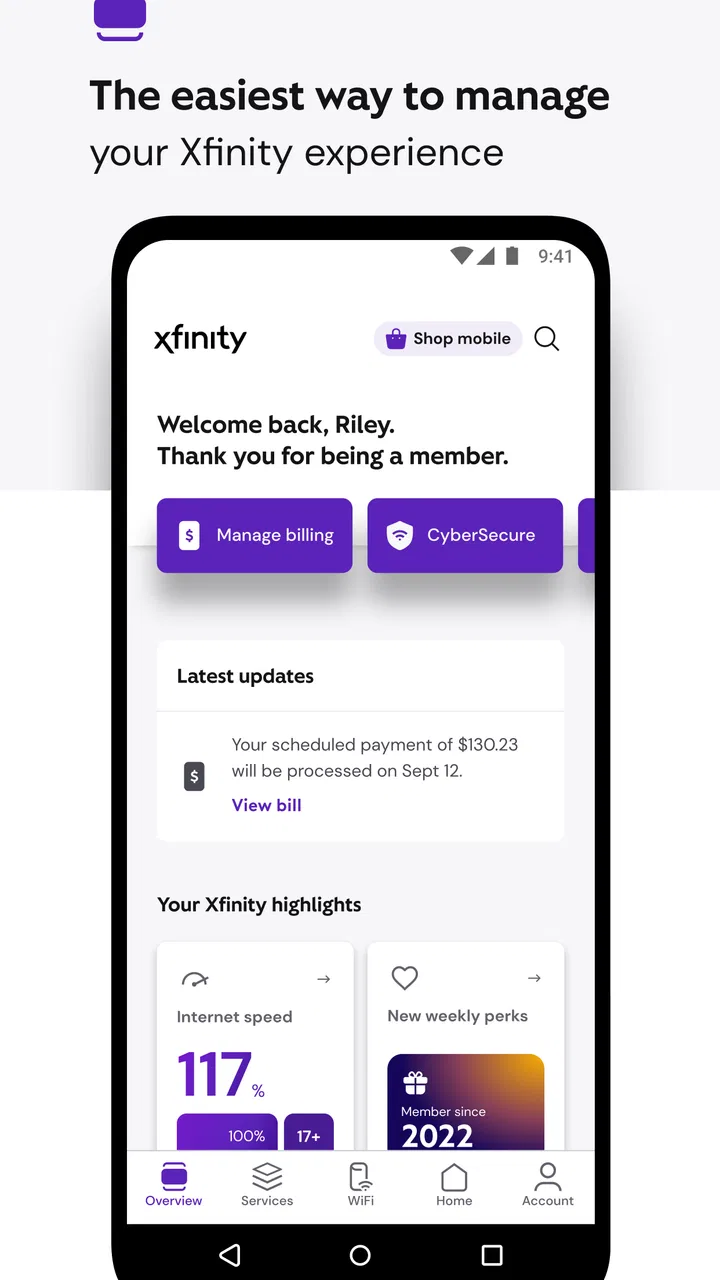
The Xfinity app offers a range of features designed to enhance your digital experience. Users can manage their Wi-Fi settings, set parental controls, and monitor data usage. The app also provides easy access to billing, troubleshooting, and customer support. These features ensure you have complete control over your Xfinity services.
02Is the Xfinity app compatible with all devices?
The Xfinity app is compatible with most Android and iOS devices. However, it is essential to ensure that your device meets the minimum operating system requirements: Android 5.0 or later and iOS 12.0 or later. Always check for updates to ensure optimal performance and access to the latest features.
03How secure is the Xfinity app?
Security is a top priority for the Xfinity app. It uses advanced encryption methods to protect your data and personal information. The app also includes features like two-factor authentication to enhance security. Always keep the app updated to benefit from the latest security enhancements and fixes.
04Can I troubleshoot my internet connection using the Xfinity app?
Yes, the Xfinity app provides tools to help you troubleshoot internet issues. You can run diagnostic tests, reset your modem, and get step-by-step guidance on resolving connection problems. This feature helps users quickly identify and fix issues without needing to wait for customer support.
05Are there any costs associated with using the Xfinity app?
The Xfinity app itself is free to download and use. However, it requires an active Xfinity account and subscription to access its features. While the app helps you manage your account and services, any additional fees depend on the specific Xfinity services you subscribe to.
Pros
- User-friendly interface for easy navigation.
- Wide range of channels and content options.
- Reliable streaming with minimal buffering.
- Parental controls for safer viewing.
- Easy integration with smart home devices.
Cons
- Occasional app crashes disrupt viewing.
- Some features locked behind premium plans.
- Requires a stable internet connection.
- Limited offline viewing capabilities.
- Compatibility issues on older devices.

Xfinity
Gallery